Machigai Salad is a tool that helps you solve spot-the-difference puzzles — like the famous one on the Saizeriya menu — semi-automatically, just for fun. No sign-up, and it runs entirely in your browser.
When you overlay two pictures and flip back and forth between them, only the spots that differ appear to wiggle. This is a real technique called blink comparison; it's the same method used to discover Pluto (Tombaugh, 1930).
The flow is three steps: Shoot → Align → Compare. Here they are in order.
(The screenshots below are from the Japanese UI, but every label has an English equivalent.)
1. Shoot (or import)
Take a photo of the puzzle with your phone. Straight-on is best, but a slight angle is fine as long as the whole thing fits in frame.
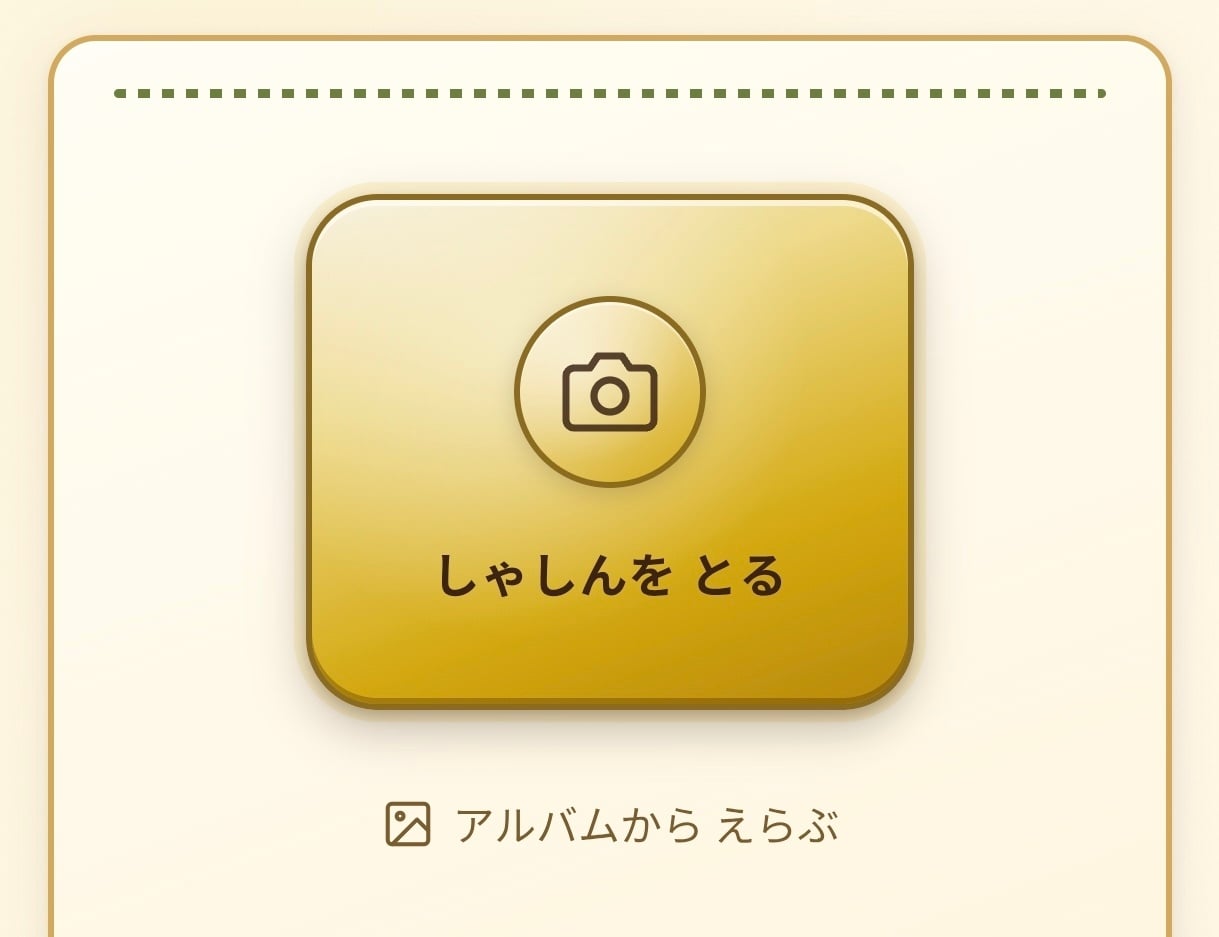
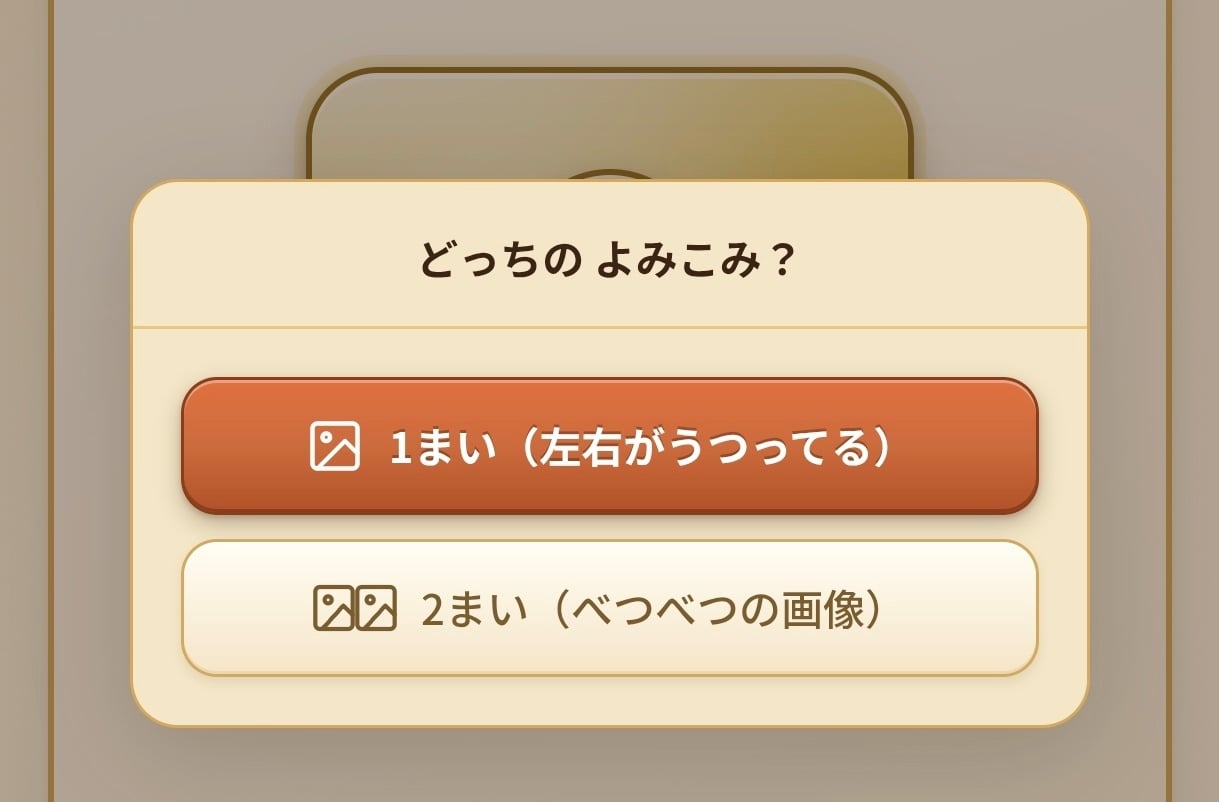
To use a photo you already took, tap "Pick from album" and choose one from your gallery. You then pick a mode:
- One image (the left and right are in a single photo)
- Two separate images
Large or curved sheets, or puzzles in a book, may not fit in one frame, or lens distortion at the edges keeps them from forming a clean rectangle. For those, use two-image mode and shoot the left and right pictures separately. It even handles puzzles laid out vertically.
2. Align the corners
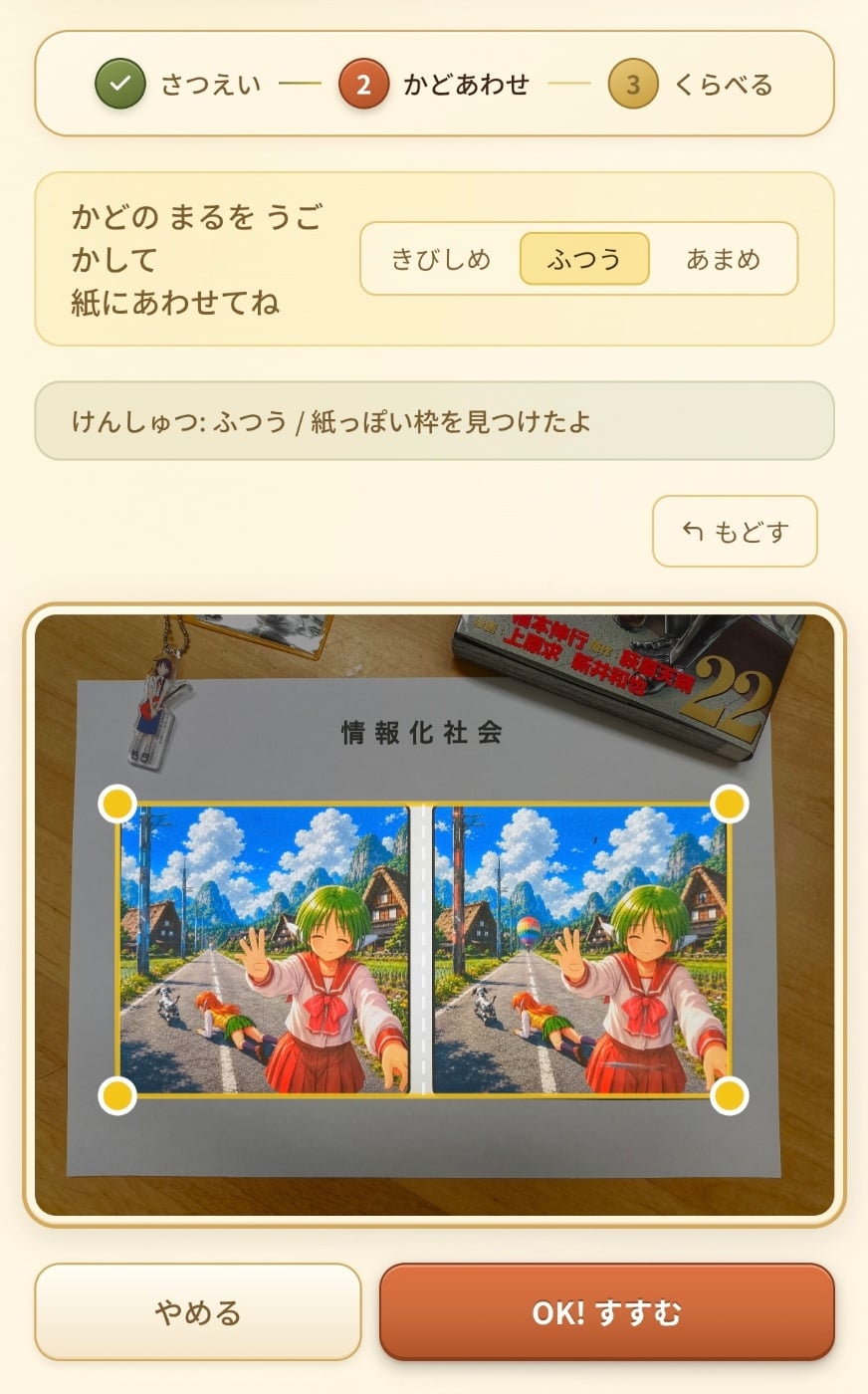
The app auto-detects the four corners of the sheet. Continue, and the image is split into left and right halves.
If detection struggles (low contrast between paper and table, shadows or wood grain in the way), fix it like this:
- Switch the detection sensitivity between Strict / Normal / Loose and tap Re-detect
- If it still won't fit, drag the four corner dots by hand to match the paper
- Undo steps back one move at a time
When it lines up, tap "OK! Let's go".
3. Compare
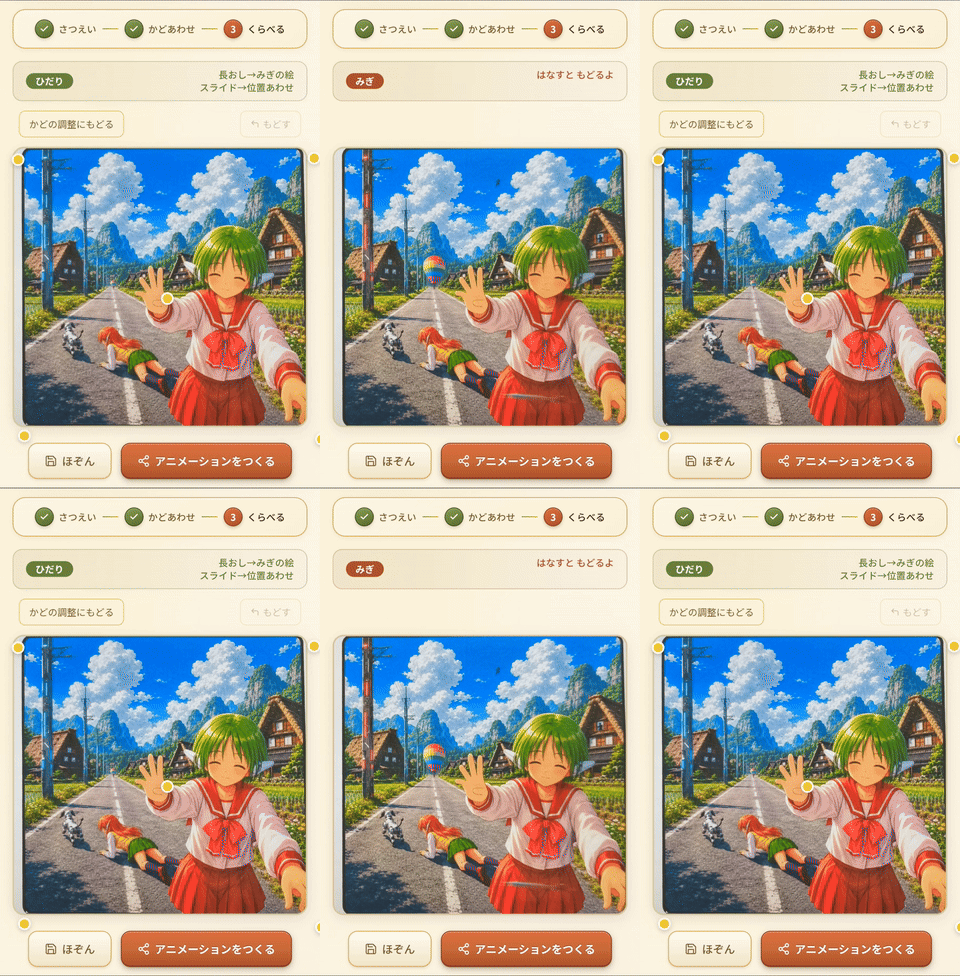
The left image is shown. Hold your finger down to switch to the right image; let go to flip back. Only the differences wiggle, so just look for those.
Fine-tuning when they don't line up
If the two pictures don't overlap cleanly, everything looks shifted, not just the differences. Three adjustments help:
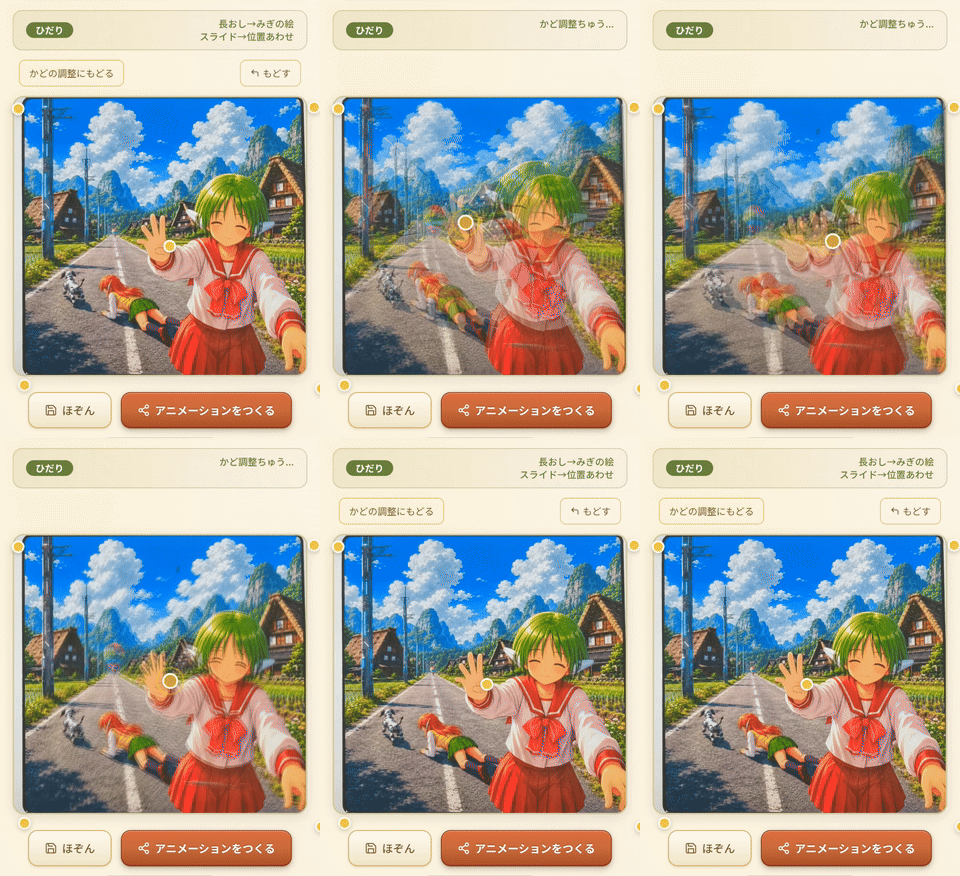
- Slide to align horizontally — if there's a divider (a gap) between the left and right pictures, splitting straight down the middle shifts the center. Slide with your finger to line it up.
- Drag the four corners — drag the corner handles in the compare view to fix slight trapezoidal skew.
- Drag the center — if the paper is warped and bulges in the middle, drag the center handle. The four corners plus the center form a 5-point mesh that bends the image to absorb the distortion.
Undo steps back one move. "Back to corners" returns to the previous step.
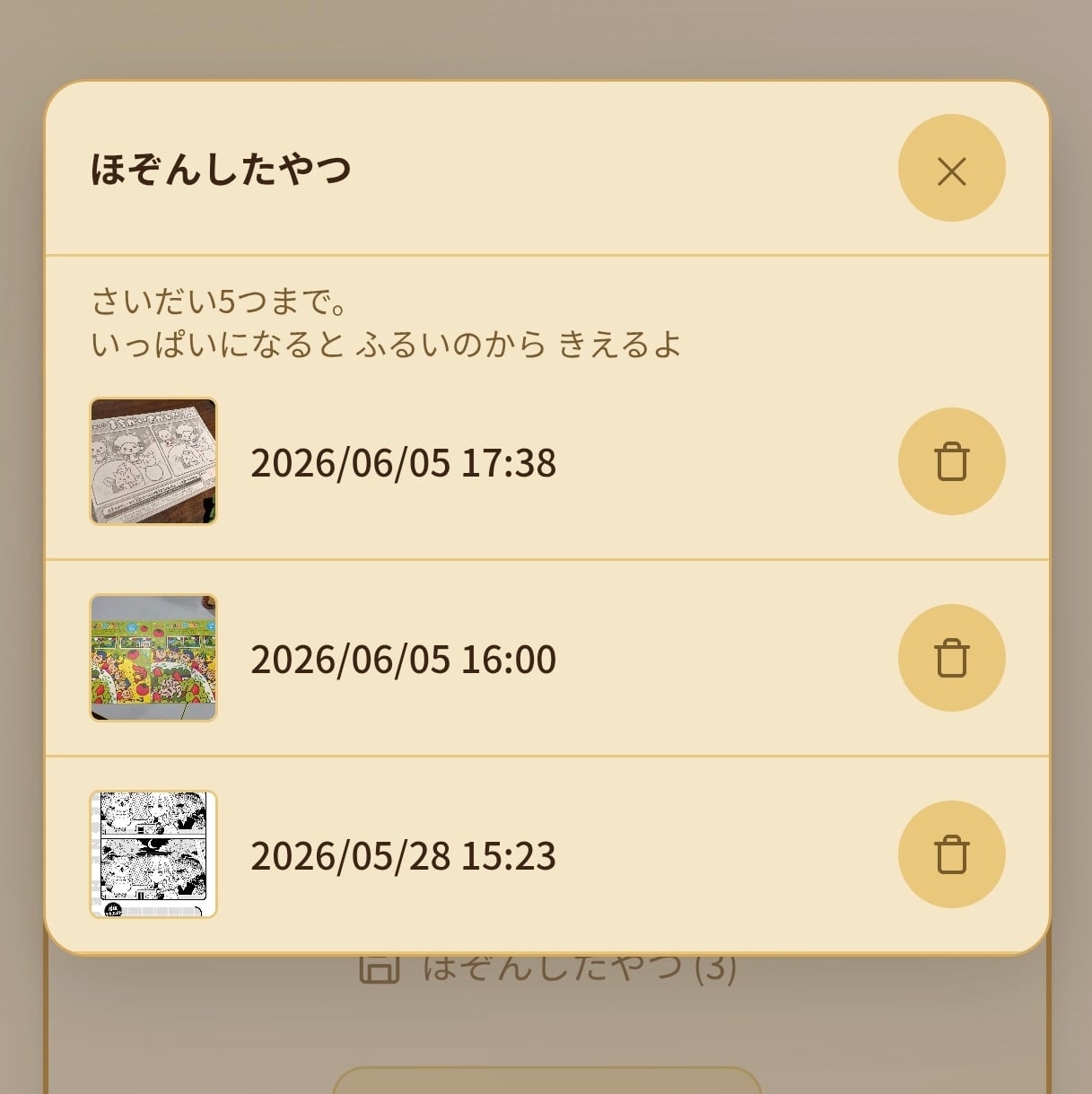
Save and revisit
Once you've finished aligning, tap "Save" to keep it (up to 5). You can bring it back any time — handy for taking another slow look after you get home from Saizeriya.
Turn it into an animation and share
From "Create animation" you can make two kinds of video.
- Wiggle video (share as GIF / download as PNG) — the difference is obvious at a glance, so it's good for checking answers or sharing.
- "Did you notice?" video (a slow 60-second crossfade / MP4) — morphs gradually from the left image to the right. The kind that makes you go "Wait, is it changing? Is it really changing?" It makes the puzzle harder, so challenge your friends with it.
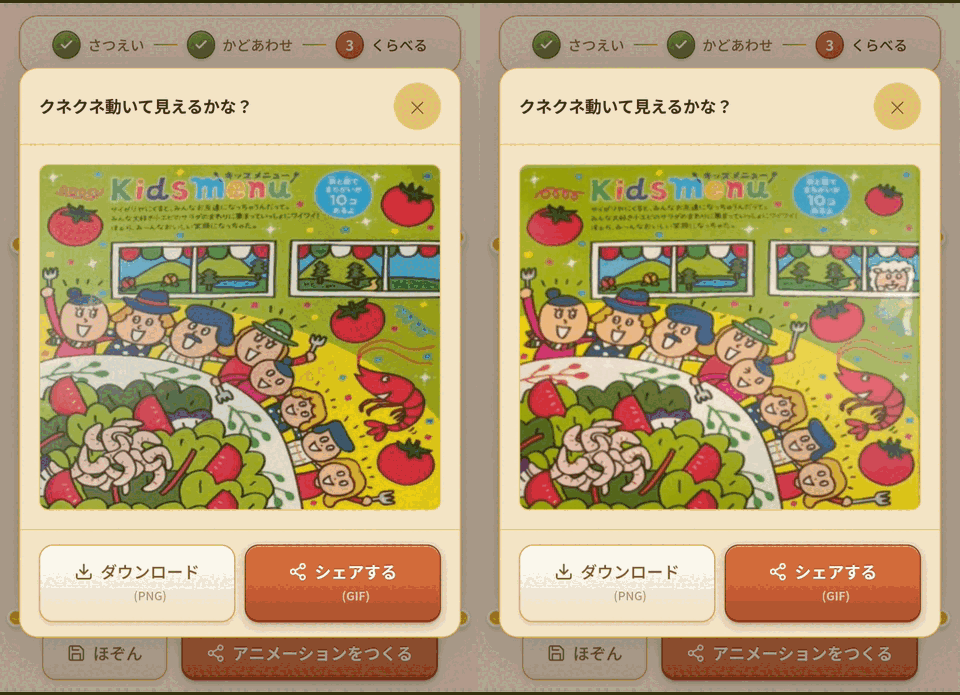
Here's an example of the "did you notice?" video. It morphs slowly from the left image to the right over 30 seconds.
Tips
- Inside in-app browsers like LINE, the camera may not start. In that case, tap "Open in browser" to open it in a normal browser such as Chrome. You can also add it to your home screen there.
- To start fresh, "Start over" takes you back to the capture screen.
Privacy and installing
All processing — including the photos you take — happens entirely in your browser. Nothing is sent anywhere, so nothing can leak.
Install it as a PWA and a little shrimp icon appears on your home screen, ready to launch — no need to search for it every time you arrive at Saizeriya.
There's also a QR code on the home screen. If you spot someone losing their mind over a spot-the-difference puzzle, show it to them. The app is available in English too.